HeartTX

APPLE WATCH → ZWIFT ON APPLE TV

Your heart rate.
Transmitted.

A free app that sends your Apple Watch heart rate directly to compatible fitness apps over Bluetooth. Tested with Zwift on Apple TV. No iPhone relay.

Available now. Free to download.

  • 100% free
  • No account
  • No ads or subscriptions
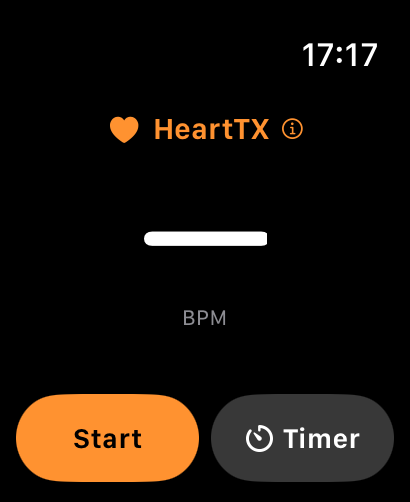
HeartTX on Apple Watch, showing the Start and Timer buttons
Two ways to start. One simple screen.
Actual HeartTX interface · Apple Watch Ultra simulator

Direct from your wristApple Watch → Bluetooth → Apple TV

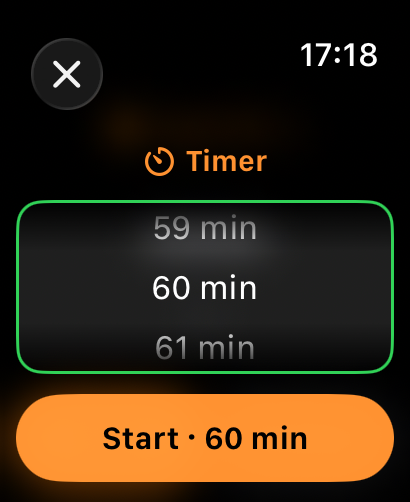
Stop on your scheduleOpen-ended sessions or a 1–240 min timer

Your pulse stays localNo heart rate upload to the developer

WHY I BUILT HEARTTX

Built for my rides.
Free for yours.

I wanted to see my Apple Watch heart rate in Zwift on Apple TV, without using my iPhone as a relay. I already had the watch. I just wanted to start a session and ride.

That’s why I built HeartTX for my own setup — and decided to share it for free with other riders.

100% free. No subscriptions. No ads.
No account to create. Just your watch, your heart rate and your ride.

— Matus, creator of HeartTX

THE APPLE TV SETUP GUIDE

How to use Apple Watch heart rate
with Zwift on Apple TV

Download HeartTX for free, then follow these three steps to use your watch as a Bluetooth heart rate sensor. Your trainer still pairs with Zwift as usual.

01 / ON YOUR WATCH

Start your heart rate session.

Open HeartTX while wearing your watch. Tap Start for a session with no time limit, or choose Timer to stop automatically.

On first use, allow heart rate, workout and Bluetooth access. Workout access keeps measurements coming throughout your session. Wait for a fresh BPM reading.
HeartTX Start and Timer buttons
Start whenever you are ready
HeartTX timer set to 60 minutes
Or choose an automatic stop
02 / IN ZWIFT ON APPLE TV

Select HeartTX under Heart Rate.

Open Zwift’s device pairing screen. Choose Heart Rate, find HeartTX and select it. Keep HeartTX open on the watch during initial pairing.

Pair inside Zwift’s sensor screen. An iPhone app does not need to relay your heart rate.

PAIRING PATH

  1. 1 Zwift device pairing
  2. 2 Heart Rate
  3. 3 HeartTX
Illustrated menu path, not a screenshot of Zwift
03 / READY TO RIDE

See your pulse. Enjoy your ride.

Check that Zwift shows a changing heart rate value before you set off. HeartTX continues measuring during its workout session.

Tap Stop on the watch when you finish. With Timer, the app stops measurement and broadcasting when the countdown ends.

Apple WatchMeasures your pulse
Bluetooth
Zwift on Apple TVReceives your heart rate

No HeartTX account or cloud service in between.

Need a hand? Open the full setup & troubleshooting guide. You can also check Zwift’s device pairing instructions.

COMPATIBILITY, CLEARLY EXPLAINED

Tested on Ultra.
Designed for smaller screens, too.

HeartTX requires watchOS 26 or later. Here is what we have checked so far.

LIVE CONNECTION CONFIRMED

Ultra → Zwift on Apple TV

Live heart rate reception has been confirmed with Apple Watch Ultra on watchOS 27.0.1 and Zwift on Apple TV.

SCREEN LAYOUT CHECKED

40, 41, 42, 44, 45 & 46 mm

Start, timer and active layouts have been checked in the watchOS simulator on SE and Series sizes. Physical heart rate and Bluetooth testing on those models is still pending.

NOT YET VERIFIED

Other fitness receivers

HeartTX uses the standard Bluetooth Heart Rate Service. Compatibility with other apps, bike computers and fitness equipment still needs testing.

No iPhone relay is needed during a session. Normal Apple Watch setup may still require an iPhone. A simulator layout check is not a hardware compatibility test.

GOOD TO KNOW

A few questions
before your next ride.

Do I need my iPhone while riding?

HeartTX sends heart rate directly from your watch over Bluetooth. Your iPhone does not act as a relay. The usual Apple Watch setup may still require an iPhone.

Is HeartTX free?

Yes — 100% free, with no subscriptions, ads or account registration. Download it for free on the App Store.

Why can’t Zwift find HeartTX?

Start a session on your watch first, allow Bluetooth access and keep the app visible for pairing. Bring the watch close to Apple TV. If other sensors are already connected, check for an unused Bluetooth connection: Apple TV has a limited number of connections. Stop and restart the session, then scan again. See the support guide for more checks.

Can I use it instead of a chest strap?

For a compatible setup, HeartTX lets Zwift receive the heart rate measured by your watch. It does not change the accuracy of the watch’s sensor. Fit, movement and your watch model can affect readings. HeartTX is for fitness use, not medical monitoring.

Does it save a second workout?

HeartTX discards its temporary workout when the session ends. Apple Health may still retain health samples or credit Activity rings, and Zwift may save its own activity.

Who can receive my heart rate?

While broadcasting, nearby compatible devices can connect and receive your live heart rate without a pairing code. Tap Stop or let the timer finish to end sharing. The developer receives no heart rate data. Read the privacy policy.

NOW ON THE APP STORE

Ready when you are.

Download HeartTX for free on your Apple Watch, start a session and connect your heart rate in Zwift.

Free · Apple Watch · watchOS 26 or later

Download HeartTX for free

Apple, Apple Watch and Apple TV are trademarks of Apple Inc. Zwift is a trademark of Zwift, Inc. HeartTX is an independent app and is not affiliated with or endorsed by Apple or Zwift.